
Add Icons to WordPress Customizer Setting Panel
23 July 2026
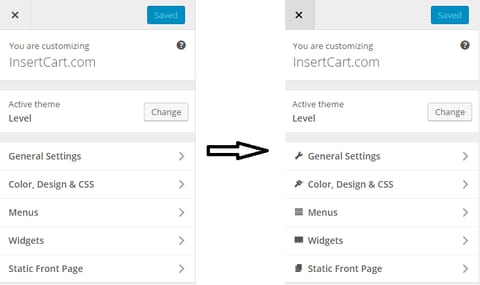
Recently WordPress makes customizer necessary for all theme submitted WP directory if you are working with it then you must want to know how to place Icons in Customizer Options there are some other issue as well apart from just placing icons like mane of sanitization fields and making other change.
But today we just talk about how you can style your customizer using CSS and place Icons in customizer . For Icons you don’t need any external font icons because WordPress itself have some included Icons with package. You can check all dashicons here they are beautiful and under GPL licences or check on Github.
 Here is you can see ID #accordion-panel-level_panel_geranal now you have ID of panel so you can use it in css but one more thing you should consider while using Icons if you used this ID only then icons will place into sub section and panel automatically under this panel. You need to point icon only to general settings class n above Picture second arrow point to it. So now you complete CSS looks like this #accordion-panel-panel_general > h3.accordion-section-title
Place Icon in Customizer Options
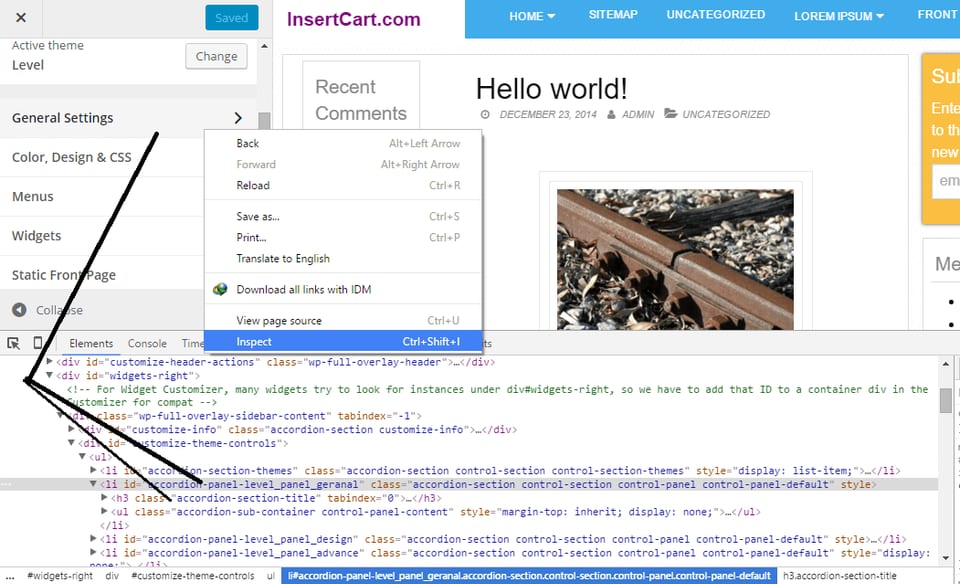
First step to create a CSS file name it whatever you prefer like customizer.css and now you just need to CSS Class and ID of every field option or section where you wish to place Icons may be in top panel or under section user developer tool to view panel CSS Class or ID as shown in below picture.
Here is you can see ID #accordion-panel-level_panel_geranal now you have ID of panel so you can use it in css but one more thing you should consider while using Icons if you used this ID only then icons will place into sub section and panel automatically under this panel. You need to point icon only to general settings class n above Picture second arrow point to it. So now you complete CSS looks like this #accordion-panel-panel_general > h3.accordion-section-title
CSS Styling
Lets start styling I use before and li to complete my css before for icons place.li#accordion-panel-level_panel_geranal > h3.accordion-section-title:before {
content: "\f107";
font-family: dashicons;
padding: 3px;
}
PHP Codes
Now save this file within your theme directory you also need a special code in function.php to call this file.function THEMENAME_custom_customize_enqueue() {
wp_enqueue_style( 'customizer-css', get_stylesheet_directory_uri() . '/css/customizer-css.css' );
}
add_action( 'customize_controls_enqueue_scripts', 'THEMENAME_custom_customize_enqueue' );
That’s all you need to do with this method you can style your customizer in any way you want. If you have any question or query either want to know more about how to place icon in customizer please put in comment box.
Comments 14
-
domainGood article. I'm experiencing a few of these issues as well..
-
Vijay KumarThanks for giving the detailed information about CSS styling. The article could be very useful for everyone.
-
Jagdish kashyapOh Man, you saved my lot's of time. I have been searching this from while. Thanks!
-
VijayHmm, That is the thing.... I was looking for what it is?? This is detailed guides about CSS. Now I have added icons on my site using your fully guide. Thanks
-
rasigunyogiThanks for giving the detailed information about CSS styling. The article could be very useful for everyone. I have added icons on my site using your fully guide. Thanks
-
Sai Sannihith CheerlaGood article and neatly explained. Thumbs up!
-
Deepak JhaThanks a lot mate.. I will try it on my website and see if it works for me or not.
-
filmywapNice Post i realy need it
-
Rovshenthank you! Very helpfull
-
SD Maid ProNice article for neat CSS Styling :)
-
Pranshu KharkwalWorked like charm. Thanks a lot for post it. You are literally a life saver.
-
Mohit Kumarnice article . Really informative.Got idea about how to add icons in wp cutomizer setting panel.
-
Pickup LinesCool Man, Working Perfectly
-
Anushka VashishtaThanks Sandy. It saved my lot of time. Really appreciate your efforts for putting this information altogether.